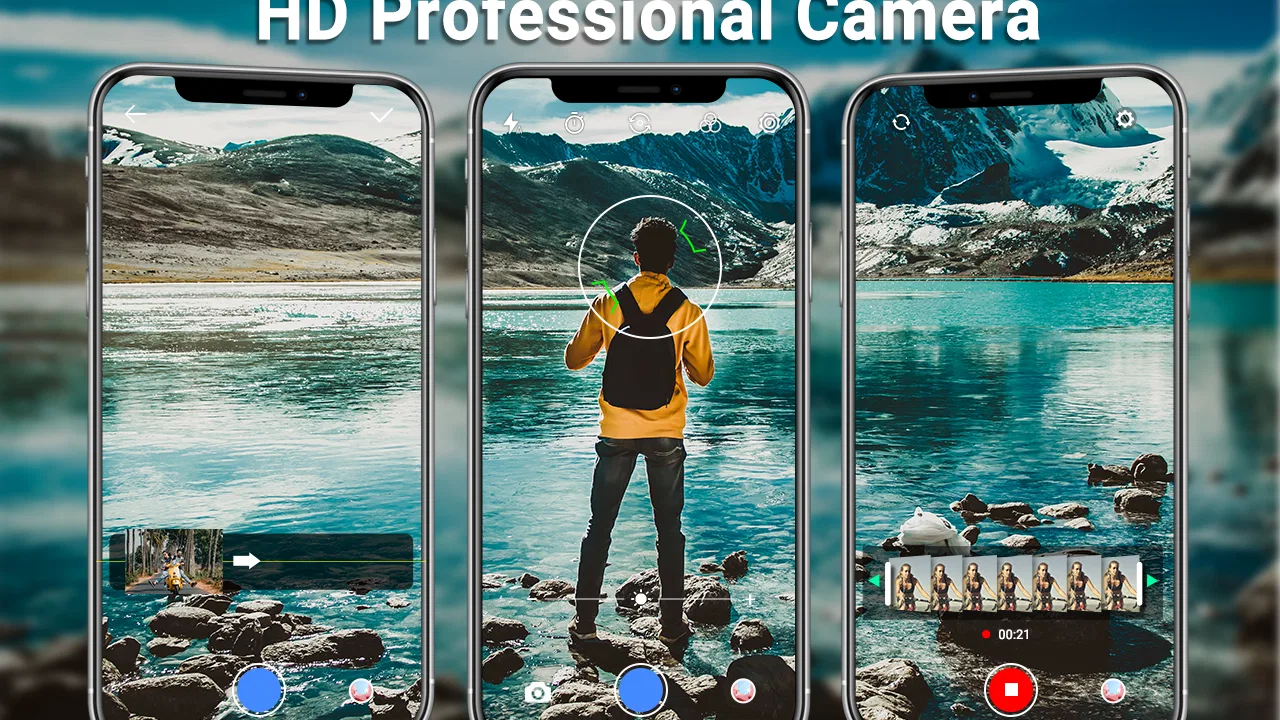
HD Camera for Android
- 4.6
- Rating
- 100.00M
- Installs
- Free
- Price

 Analysis by App-foxy
HD Camera is the kind of photography app I reach for when I want to take a picture quickly without working through a crowded set of controls. Developed by Mobile_V5, it focuses on a straightforward camera experience for Android, with tools for regular photos, panorama shots, quick capture, and filters. I found that simplicity is its main appeal: it feels aimed at people who want their phone camera to open, focus, and shoot with as little ceremony as possible.
That does not mean it is the right replacement for every camera app. The default camera supplied by a phone maker may offer deeper access to the phone’s own image processing, while a specialist camera app can provide more manual control. HD Camera sits between those options. It is a free photography app with an Everyone age rating, and its broad reach is reflected in an average rating of 4.6 from over 700 thousand ratings and more than 100 million installs.
I would recommend it most readily to someone who finds a built-in camera confusing, slow to navigate, or overloaded with modes they never use. It also makes sense as a practical alternative camera for an older Android phone. The important thing is to approach it as a simple capture tool rather than as a full professional camera replacement.
You May Also Like

 Blood Strike: 2.5 Anniversary
Blood Strike’s Loadouts Turn Every Drop Into a Tactical Gamble
A close look at Blood Strike’s custom loadouts: how fast access to signature weapons reshapes its battle royale rhythm, rewards preparation, and narrows the gap between fights.

 Pandora - Music & Podcasts
Pandora’s Music Is Easy to Start, but Harder to Recover
Pandora’s strength is its low-effort path from a seed to a station. Its weak spot is how much confidence it asks you to place in connection, setup, and quiet recovery.

 8 Ball Pool
 Is Built on Rivalries, Rematches, and Routine
A close look at the rivalries, rematches, shared routines, and unanswered safety questions that turn a quick pool match into a persistent mobile community.

 Samsung Music
’s Quiet Strength Is Playing What You Already Own
Its reach comes less from spectacle than from dependable access to a personal library. That simplicity is both the app’s strongest retention engine and its ceiling.

 AccuWeather: Weather Radar
AccuWeather Review: A Quick, Clear Forecast for Everyday Decisions
For everyday plans, the best forecast is the one you can understand quickly. AccuWeather makes rain timing, radar, and local conditions easy to act on, with a few trade-offs.

 Hill Climb Racing
Why Hill Climb Racing Still Turns Crashes Into One More Run
A tiny car, a bumpy hill and one more upgrade: Hill Climb Racing keeps resurfacing because its simple chaos makes every near-miss feel personal.
More From Our News Desk
View All News


Where the experience usually gets stuck
The first difficulty is often not taking a photograph but getting comfortable with the app’s layout. A simple camera still has to expose several choices at once: switching between ordinary shooting and panorama, deciding whether to use a filter, and finding the control for a quick shot. When these controls are unfamiliar, people can mistake a mode change for a fault. A panorama view, for example, behaves differently from a normal still image, so moving the phone too quickly can produce a result that feels disappointing even though the app is working normally.
I also noticed that “quick” capture is best understood as a convenience for the moment, not a guarantee that every moving subject will be frozen perfectly. A child running across a room, a pet turning its head, or a cyclist passing outside can still challenge any phone camera. The app can reduce the time between opening the camera and pressing the shutter, but it cannot remove the limits of the phone’s lens, sensor, lighting, or focus system.
Filters create a different kind of friction. They are useful when I want to preview a mood before taking a picture, but they can make an image look less natural if I forget that one is active. My practical habit is to check the preview before photographing anything important. If skin tones or familiar colors look unusual, I first return to the plain camera view rather than assuming the phone has suddenly developed a hardware problem.
Panorama also deserves realistic expectations. It is convenient for a wide landscape, a large room, or a group that will not fit comfortably in one frame. It is less suitable for people who are moving, tree branches blowing in the wind, or scenes with many nearby objects. The more carefully I keep the phone moving at a steady pace, the more coherent the final image tends to feel. This is a shooting technique issue, not a reason to keep reinstalling the app.
Another common sticking point is image quality. HD Camera can provide a simple route to photographs, but the word “HD” should not be treated as a promise that every phone will produce the same detail. The camera hardware and Android device still determine much of the final result. A budget phone in dim light may show softness or noise, while a newer phone may produce a cleaner image through its built-in processing. The app changes the shooting experience; it does not turn one camera sensor into another.
Small habits that prevent avoidable mistakes
Before an important shot, I take a moment to confirm that the preview is clear and that the selected mode matches the subject. For a person or document, ordinary photo mode is usually the sensible starting point. For a broad view, panorama is worth considering. For a casual picture where speed matters more than careful composition, the quick-snap approach can be useful.
I also avoid judging the result only from the live preview. A phone held at an awkward angle can make a scene look poorly framed, and a screen viewed in bright sunlight can make exposure seem different from how it actually is. After taking the image, I check it in the phone’s gallery at a comfortable brightness. This simple step helps separate a display problem from a camera problem.
The most useful rule is to test one change at a time. If I switch modes, add a filter, move to a darker room, and change how I hold the phone all at once, I cannot tell what caused the result. A short sequence of plain photos in good light is a better test than a complicated experiment.
Setup checks before blaming the camera
HD Camera is designed for Android and currently appears as version 6.9.7.0, with Android 6.0 as the minimum operating system. That makes compatibility relatively broad, but compatibility alone does not guarantee an identical experience on every device. Android phones differ in camera hardware, screen size, manufacturer software, storage behavior, and background restrictions. I treat the first launch as a quick setup check rather than assuming the app will behave exactly like the camera on another phone.
The first check is whether the camera preview opens normally. If it does not, I close other apps that may be using the camera and reopen HD Camera. A video call, scanning tool, social network, or another camera app can sometimes leave the camera resource busy. A full phone restart is also a sensible general step when the preview remains black or the shutter does nothing.
Next, I make sure the phone has enough free storage for new photographs. A camera can appear to capture an image but fail to complete the save when the device is nearly full. Removing unwanted videos or moving older photographs elsewhere can restore normal behavior. This is especially worth checking when existing pictures open correctly but new ones do not remain in the gallery.
I pay attention to the phone’s system settings as well. If the app was installed recently, Android may ask for access needed to use the camera or save images. I read those prompts and check the app’s permission settings if the preview or saving process does not work. If a permission has been denied, restoring the relevant access through Android settings is a more useful first step than repeatedly tapping the shutter.
Battery-saving tools can also complicate testing. Some phones restrict apps aggressively when power is low, and that can make opening or switching behavior feel inconsistent. I prefer to test the camera with the phone charged and without several demanding apps running in the background. This does not change the camera hardware, but it gives the app a fairer chance to operate without the phone managing resources unusually tightly.
For the cleanest first test, I use a well-lit stationary subject, keep the lens unobstructed, and take an ordinary photograph without a filter. This establishes whether the basic path works: open the app, frame the subject, capture, and find the image afterward. Only then do I test panorama or quick capture. If the basic path is successful, a problem in one special mode is easier to isolate.
How I check a confusing result
When a photograph looks dark, I first compare the lighting in the room with the preview instead of immediately changing apps. If the scene itself is dim, the result may simply reflect the available light. I move closer to a window or turn on a room light and take another picture. If the second image improves, the issue was probably the shooting conditions rather than a broken installation.
When the image is blurry, I hold the phone with both hands, pause briefly before pressing the shutter, and clean the lens with a soft cloth. Fingerprints on the lens are surprisingly good at creating a hazy result that can be mistaken for poor focus. I also check whether the subject moved. A sharp photograph of a stationary object is a more useful test than a picture of a moving person in a dark room.
If the image is captured but difficult to locate, I look through the phone’s gallery and its recent items rather than assuming it vanished. Gallery apps can take time to refresh, especially after storage changes or when the phone is busy. Checking the image from a file-browsing screen, where available on the device, can also distinguish a saving issue from a gallery-indexing delay.
Recovering a workflow when something goes wrong
My preferred recovery process is deliberately boring. I leave the current shooting mode, return to a normal photo, close HD Camera, and open it again. Then I take one test image in good light. If that works, I reintroduce the feature I wanted, such as a filter or panorama. This approach is quicker and more informative than changing several settings while continuing to photograph important subjects.
If the app repeatedly stops responding, I use Android’s ordinary app-management tools to close it and clear temporary app data when appropriate. I am careful not to erase personal photographs stored elsewhere on the phone while troubleshooting. The exact menu names can vary by Android manufacturer, so I follow the phone’s own app settings rather than relying on a single fixed path. A restart after that cleanup can help the system release a camera connection that did not close properly.
For a panorama that looks broken, I start again with a slower, smoother movement and a clearly defined direction. I avoid pivoting the phone wildly from the wrist. Keeping the device at a consistent height makes the final image easier to join. I also choose a scene with stable lighting; turning from a bright window toward a darker interior can make the result harder to judge.
For quick photographs, I prepare the framing before the moment happens. If I wait until the subject is already moving, no camera app can recover the missed composition. I keep the phone at a comfortable angle, use a clear preview, and press once rather than repeatedly tapping while the device is still processing. This is one of the less obvious trade-offs of a fast workflow: speed helps most when the preparation happens before the shutter moment.
Filters are easiest to troubleshoot by returning to an unfiltered view. If the plain image looks normal, I add one filter and compare the preview before capturing. I avoid using a filter as a way to correct a badly lit scene, because it may change color without solving blur, shadows, or lost detail. For pictures I may edit later, the plain version gives me more flexibility.
There is also a practical privacy and organization habit worth adopting. After a busy photo session, I review the saved images and remove accidental shots before they become mixed with important memories. Quick capture can create duplicates or poorly framed pictures simply because it makes shooting easy. The app’s speed is most valuable when paired with a short cleanup routine.
When the app is not the cause
Some complaints belong to the phone, the environment, or the way the picture was taken. If every camera app produces a hazy image, the lens may need cleaning or the camera module may have a hardware issue. If the phone overheats, freezes in other apps, or struggles with storage generally, changing camera applications is unlikely to solve the underlying problem.
Lighting is another major source of confusion. Indoor scenes can look fine to the eye while being difficult for a small phone sensor. A bright background behind a person can leave the face looking dark. A quick test with the subject facing a window, rather than standing in front of it, tells me more about the app’s everyday usefulness than a comparison made in a difficult backlit scene.
Motion blur is also not unique to this application. Holding the phone still helps, but the subject must remain reasonably still too. For sports, concerts, night streets, or serious low-light work, I would look for a camera app that offers more specialized controls, provided the phone supports them. HD Camera is better suited to ordinary snapshots than to demanding photographic situations where shutter behavior and manual exposure are central.
The phone’s manufacturer camera may be the better choice when it includes device-specific processing, portrait effects, night modes, or hardware features that third-party apps cannot fully access. I would not uninstall the built-in camera just because HD Camera is simpler. Instead, I see them as serving different roles: the manufacturer’s app for maximum integration, and this one for a cleaner, less intimidating shooting path.
On the other hand, someone who dislikes complicated camera interfaces may find HD Camera more comfortable than a feature-heavy alternative. A specialist manual camera can be excellent for an experienced photographer, but its extra controls can slow down a person who simply wants a reliable picture of a meal, a receipt, a child’s drawing, or a view from a trip. The better choice depends on whether control or immediacy matters more.
Who will benefit most from it
I think this app is particularly suitable for casual photographers, people using older Android phones, and anyone who wants a familiar secondary camera without paying for an app. It can also help a family member who feels lost in a manufacturer camera filled with unfamiliar icons. The Everyone rating makes it broadly approachable, while the free price removes the need to commit money before testing whether the workflow fits.
A realistic everyday example would be photographing a handwritten note during a shopping trip. I open the app, use the ordinary camera rather than a filter, hold the phone parallel to the paper, and take a test image to check that the writing is readable. If the room is dim, I move toward better light instead of expecting a mode change to create detail that the scene does not contain. That workflow is faster and more dependable than taking several decorative shots and discovering later that the text is blurred.
I would be less enthusiastic for a photographer who needs extensive manual control, advanced editing, or a carefully managed professional workflow. The same applies to someone whose phone already has an excellent camera application and who values its specialized processing. Installing another camera will not automatically improve every image. In some cases it simply offers a different interface, which may be useful but is not the same as better optics.
My practical verdict after using it
HD Camera succeeds because it keeps the central task clear: point the phone, choose an appropriate mode, and take the picture. Its regular photo mode is the dependable center of the experience, while panorama, quick capture, and filters give casual users a few ways to adapt without turning the screen into a control panel. I appreciate that it can serve as a low-pressure starting point for someone who does not want to learn photography terminology before taking a picture.
Its limitations are equally clear. Results still depend heavily on the Android phone, the available light, the subject’s movement, and the camera hardware. Special modes need sensible technique, and filters can distract from the original image if used carelessly. When the preview fails, images do not save, or the app behaves inconsistently, the most productive response is to check camera access, storage, other apps, and the phone itself before deciding that the application is at fault.
Mobile_V5 has kept this app in the photography category since its release on August 26, 2014, and the current version is 6.9.7.0. Its long presence and large install base make it an easy option to consider, but popularity should not replace a personal test on your device. I would install it for quick everyday pictures, a simpler interface, or a backup camera workflow. I would skip it in favor of a more advanced alternative when manual control, specialized night photography, or deep manufacturer integration is the main priority.
My final recommendation is practical rather than absolute: try HD Camera with a short, controlled test. Take a plain photo in good light, confirm where it saves, then try a panorama and one filter only if you need them. If that basic routine feels faster and clearer than your current camera, the app has earned a place on your phone. If your existing camera already handles your subjects well, the main benefit here will be simplicity, not a guaranteed jump in image quality.
FAQs for HD Camera for Android
01What features does the HD Camera app offer for photography enthusiasts?
The HD Camera app provides a range of features designed for photography enthusiasts, including high-resolution photo and video capture, various shooting modes, and real-time filters. It also offers manual controls for focus, exposure, and white balance, allowing users to customize settings to achieve professional-quality images. Additionally, the app includes a built-in photo editor for quick adjustments.
02Is the HD Camera app user-friendly for beginners?
Yes, the HD Camera app is designed with an intuitive interface that is user-friendly for beginners. It offers easy navigation and straightforward controls, making it simple for users with any level of experience to capture stunning photos. The app also provides helpful tutorials and tips to assist new users in getting started and maximizing their photography skills.
03Does the HD Camera app support video recording, and what are its capabilities?
The HD Camera app supports high-definition video recording with options for different resolutions and frame rates. It includes features like video stabilization, time-lapse recording, and slow-motion capture, allowing users to create dynamic and engaging videos. The app also supports external microphone integration for improved audio quality, making it versatile for various video projects.
04Are there any in-app purchases or advertisements in the HD Camera app?
While the HD Camera app is free to download, it may include in-app purchases for premium features and ad-free usage. These purchases often unlock additional filters, advanced editing tools, and exclusive shooting modes. Users can choose to upgrade for an enhanced experience, though the free version still offers substantial functionality with occasional ads.
05What are the system requirements to run the HD Camera app on Android devices?
The HD Camera app requires Android version 5.0 Lollipop or higher to run smoothly. It is optimized for devices with at least 2GB of RAM and a quad-core processor to ensure seamless performance. Users should also ensure they have adequate storage space for saving high-resolution photos and videos. Regular updates help maintain compatibility with newer Android versions.
Pros
- High-resolution photo capabilities.
- Intuitive user interface design.
- Multiple shooting modes available.
- Fast auto-focus feature.
- Supports various photo formats.
Cons
- Contains in-app advertisements.
- Limited filters in free version.
- Consumes significant battery power.
- Occasional app crashes reported.
- No manual focus option.

HD Camera for Android
Gallery